Apply a Draft Policy
Applying policy configuration changes throughout the AT&T Dynamic Defense portal is simple.
1
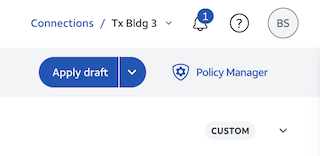
Click "Apply Draft"
When ready to apply your new policy, click the blue"Apply Draft" button at the top right to activate your draft policy.
2
Add Policy Info
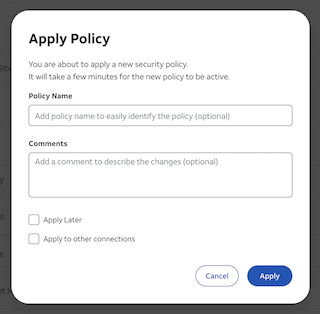
A prompt will appear asking if you are sure you want to continue. Here you can add policy name, notes about the new policy, schedule the policy to be applied at a later time or copy your policy to other connections. Once you have entered info or made selections, select "Apply" to activate the policy.
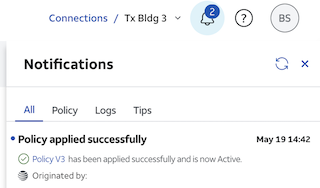
Once the policy is successfully updated within the AT&T Dynamic Defense Service the "Pending" badge will briefly change to "Applied" and then disappear. A new notification will be populated in alerts to show status success.
This Section
1
Click "Apply Draft"2
Add Policy Info